
How to Remove iCloud Activation Lock Safely on iPhone, iPad, and Mac
Learn how to remove iCloud Activation Lock when you forgot your Apple Account or bought a used device, plus off iCloud, bypass risks, and scam warnings.

The safest way to remove iCloud Activation Lock is to sign in with the Apple Account linked to the device, ask the previous owner to remove it from Find My, or submit a support request to Apple with valid proof of purchase. These official routes remove the old account association without deliberately limiting the normal features of an iPhone, iPad, or Mac.
If the setup screen says “iPhone Locked to Owner,” displays Activation Lock, or asks for another person's Apple Account after a restore, the device is still associated with Find My. Do not immediately pay for a service promising an unlock in minutes, and never give a stranger your password or verification code. First identify the actual lock because a device passcode, carrier lock, MDM enrollment, and Activation Lock require different solutions.
Quick answer: the legal owner should first reset the account password at iforgot.apple.com, remove the device through Find My, or contact Apple Support. If you bought the device used, ask the seller to remove it remotely. Consider a third-party technical service only after ownership has been verified and the limitations, risks, delivery terms, and refund policy are clear.
What Are iCloud Lock and Activation Lock?
“iCloud lock” is the informal name commonly used for Activation Lock, Apple's theft-deterrent feature that turns on with Find My. After a device is erased, restored, or activated again, Apple may require the Apple Account and password previously used to configure Find My.
Activation Lock can appear on:
- An iPhone or iPad after a restore, data erase, or failed software update.
- An Apple Watch that remains paired with the previous owner's account.
- A Mac with Apple silicon or the T2 Security Chip while Find My is enabled.
- A used device that the seller did not sign out of or remove from their account.
The feature is designed to stop unauthorized use of lost or stolen devices. A technical claim or an IMEI alone does not replace proof of ownership when Apple asks for verification.
Identify the Lock Before Trying to Remove It
| What you see | Likely issue | Appropriate next step |
|---|---|---|
| A screen requesting a four- or six-digit code | Device passcode | Enter the correct passcode or use Apple's recovery process; local data may be erased |
| “iPhone Locked to Owner” | Activation Lock | Sign in with the linked account, ask the previous owner to remove it, or submit a request to Apple |
| Wi-Fi works but the device rejects a SIM | Carrier lock or SIM issue | Check Carrier Lock and IMEI status, then contact the carrier |
| A Remote Management screen | MDM enrollment | Contact the organization that manages the device |
| A firmware or EFI password on an older Mac | Firmware lock | Contact the owner or Apple with valid purchase records |
You can use MobiUnlock's Apple check services to review model, Find My, or IMEI information when needed. A check report is reference data only: it does not establish ownership and does not guarantee that Activation Lock can be removed.
Method 1: Reset Your Apple Account Password
Use this method when you own the device and remember the email address or phone number associated with the Apple Account but have forgotten its password.
- Open iforgot.apple.com on a trusted device or browser.
- Enter the email address or phone number associated with the account.
- Complete verification using a trusted device, trusted phone number, or recovery key where available.
- Set a new password and wait for account recovery if Apple requires it.
- Connect the locked device to the Internet and sign in with the updated credentials.
Recovery time depends on the security information available for the account. Never share a two-factor authentication code, device passcode, recovery key, or new password with an outside service.
Method 2: Ask the Previous Owner to Remove the Device Remotely
This is normally the best solution for a used iPhone, iPad, or Mac when you can still contact the seller. The previous owner does not need to disclose their password and may not need to have the device in front of them.
Ask the owner to sign in to Find Devices on iCloud, select the correct device, erase it if required, and choose Remove This Device or Remove from Account. The exact wording can vary with the device state and current interface.
After removal:
- Restart the device.
- Connect it to Wi-Fi or cellular service.
- Run through setup again.
- Confirm it no longer requests the previous owner's account.
- Complete the purchase only after you can sign in with your own account and enable Find My normally.
If the seller avoids the request, cannot explain the device's origin, or asks you to sign in with an unfamiliar Apple Account, return the device under the seller or marketplace policy.
Method 3: Submit an Activation Lock Support Request to Apple
Apple may review an Activation Lock removal request when the applicant can demonstrate legal ownership. Prepare:
- A purchase receipt that identifies the product, purchase date, and seller.
- A serial number or IMEI that matches the device.
- Your contact details and any additional records Apple requests.
- Confirmation that the device is not owned or managed by a business, school, or other organization.
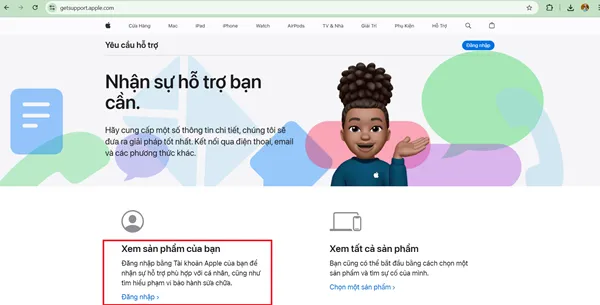
Open Apple's Activation Lock support request page and follow the current instructions. Apple decides whether the evidence is sufficient. Edited receipts, informal receipts without identifying information, or mismatched records may be rejected.
Official Removal, “iCloud Off,” and iCloud Bypass Compared
These terms are frequently mixed together in advertising. Ask what the device will actually be able to do after the service instead of relying on the product name.
| Criterion | Official Activation Lock removal | Service advertised as “iCloud off” | iCloud bypass |
|---|---|---|---|
| Intended result | Removes the old association after ownership verification | Provider claims to change Find My or Activation Lock status | Skips the activation screen on a compatible configuration |
| Sign in with a new account | Yes, after successful removal | Must be confirmed and tested | May be unavailable or incomplete |
| Reset and update | Normally supported | Confirm warranty and conditions | May relock or lose functionality |
| SIM, calls, and iMessage | Normal unless another fault exists | Confirm for the exact service and model | May be restricted |
| Risk level | Lowest | Depends on provider, service source, and policy | Higher and dependent on hardware and OS version |
MobiUnlock does not recommend treating bypass as equivalent to Apple removing Activation Lock. If the device is Wi-Fi-only, cannot use a new Apple Account, cannot be reset or updated, or must remain on a particular OS version, it has not returned to ordinary unrestricted use.
When Should You Consider an iCloud Unlock Service?
Only consider a service after you have:
- Confirmed that you legally own the device or have the owner's authorization.
- Tried account recovery and contacted the previous owner without success.
- Checked the exact model, serial or IMEI, OS version, and Find My status.
- Received a clear explanation of whether the result is full removal or a limited bypass.
- Received written pricing, delivery estimates, cancellation terms, and refund conditions.
A model appearing on a support list does not mean every OS version, baseband, sales region, or Clean/Lost status behaves the same way. Provide only the minimum information required for a compatibility check. Do not send an Apple Account password or verification code.
Checklist for Choosing a Reliable Provider
- Identifiable business: the provider has a website, support channels, terms, and an order-tracking process.
- Specific result: the description states whether Find My becomes OFF, whether the device can be reset and updated, and whether SIM service and a new account work.
- No absolute guarantee: the provider acknowledges that results depend on the model, device status, and verification.
- No demand for secrets: a legitimate compatibility check should not require your account password, 2FA code, email access, or device passcode.
- Written refund policy: failed orders, incorrect identifiers, active processing, cancellations, and refund timing are addressed.
- Ownership policy: the provider refuses lost, disputed, or suspicious devices.
Warning Signs of an iCloud Unlock Scam
- The seller claims to unlock every model and every status within minutes.
- A 100% success promise is offered without written refund terms.
- A low initial quote is followed by repeated “server,” “insurance,” or “port opening” fees.
- You are told to sign in to an Apple Account supplied by the seller.
- The seller asks for your email password, two-factor code, recovery key, or device passcode.
- Payment is accepted without an order number, receipt, status page, or stable support channel.
- Find My OFF screenshots cannot be matched to the serial or IMEI on your order.
Never sign an unknown Apple Account into your iPhone. The account owner could enable Lost Mode, remotely lock the device, and demand payment.
What to Check After a Successful Removal
Before confirming that an order is complete:
- Restart the device and connect it to the Internet.
- Repeat setup from the beginning if instructed.
- Sign in with your own Apple Account.
- Enable Find My and confirm the device appears in your device list.
- Test the SIM, calls, mobile data, Wi-Fi, iMessage, and FaceTime.
- Confirm in writing whether a reset, restore, or system update can reactivate the lock.
- Keep the order number, warranty terms, and serial or IMEI check results.
If the result is a bypass, back up important data before any update or restore. Do not perform a factory reset merely as a test when the provider has warned that Activation Lock may return.
How to Avoid Buying an Activation-Locked Apple Device
- Ask the seller to erase the device while you are present.
- Complete setup to the Home Screen using your own Wi-Fi connection.
- Sign in with your Apple Account and test Find My.
- Compare the serial or IMEI on the device, enclosure, box, and receipt.
- Check carrier lock, blacklist, and MDM status when buying a former business device.
- Do not accept “restore it at home and it will work” as proof that the lock is removed.
- For remote purchases, use a marketplace with inspection and dispute protection.
Frequently Asked Questions
Does removing iCloud Activation Lock erase data?
Resetting an Apple Account password does not necessarily erase data. Erasing the device, restoring it, or completing some activation procedures will remove local data. Back up the device first if you can still access it.
What if I forgot both my Apple Account and password?
Look for the account on a trusted device, in old emails, or on App Store receipts, then use Apple's account recovery page. If you cannot verify the account, contact Apple with valid proof of purchase.
Can the previous owner remove Activation Lock remotely?
Yes. The previous owner can select the device in Find Devices on iCloud and remove it from their account. They do not need to give the buyer their password.
Can iCloud Activation Lock be removed with only an IMEI?
An IMEI or serial number identifies the device and can support a status check, but it does not prove ownership or guarantee removal. Treat IMEI-only success guarantees cautiously.
Does an iCloud bypass make the device fully functional?
Not always. Depending on the method, the device may lack SIM service or Apple features, may not support reset or updates, and may return to Activation Lock.
Does Apple remove Activation Lock for free?
Apple does not charge for its official support-request process, but the applicant must satisfy its verification requirements and submit valid purchase records. Apple makes the final decision.
Should a Lost Mode device be accepted for unlocking?
No. Lost Mode indicates that the owner has marked the device as missing. Use the contact details shown on the screen or contact the appropriate local authority to return it.