
How to rent tools on MobiUnlock
Choose a package, pay for your rental, and find your login details. Already paid? Jump to step 6.
Screenshots use demo data. Prices, availability, and payment methods may vary.
Choose a tool
Open the rental catalog and select the software you need. Check the product page for requirements and account availability.
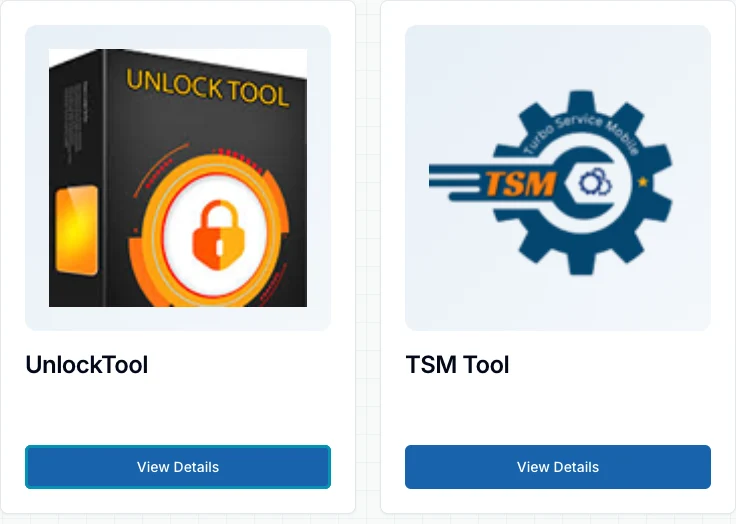
Open full-size screenshot — Choose a tool Choose a rental duration
Under Select Package, pick the number of hours you need. Check the price and review any add-ons offered for that tool.
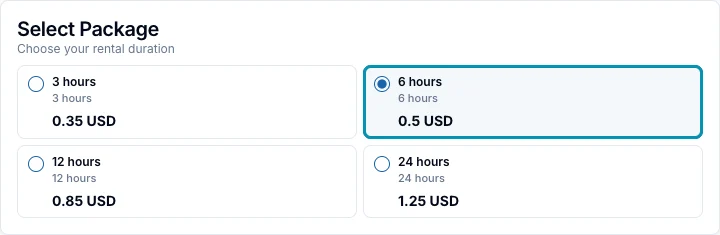
Open full-size screenshot — Choose a rental duration Add your email and review the total
Enable Receive order info via email and enter an address you can access later. Apply a voucher if you have one, check the total, then select Rent Now.
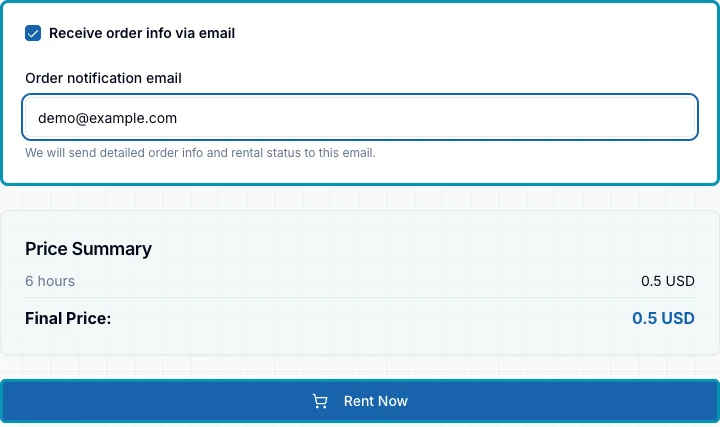
Open full-size screenshot — Add your email and review the total Choose a payment method
In the Choose payment method dialog, select one of the available methods. Complete any required selections and select Create order and pay to go to checkout.
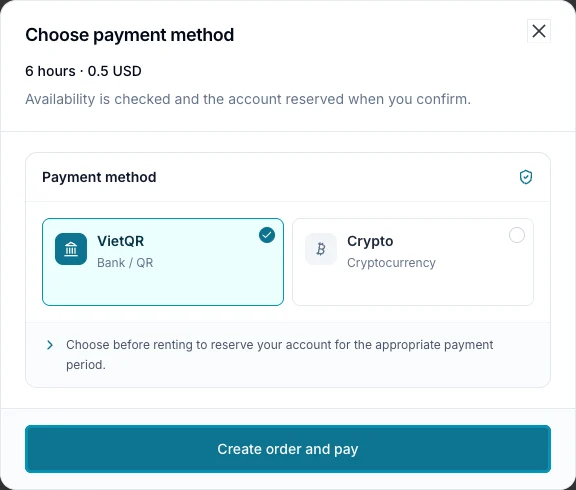
Open full-size screenshot — Choose a payment method Pay for the rental
Choose a method shown at checkout and follow the instructions for your order. For a bank transfer, use the exact amount and reference shown. For crypto, check the asset, network, and amount. Save your order code or link.
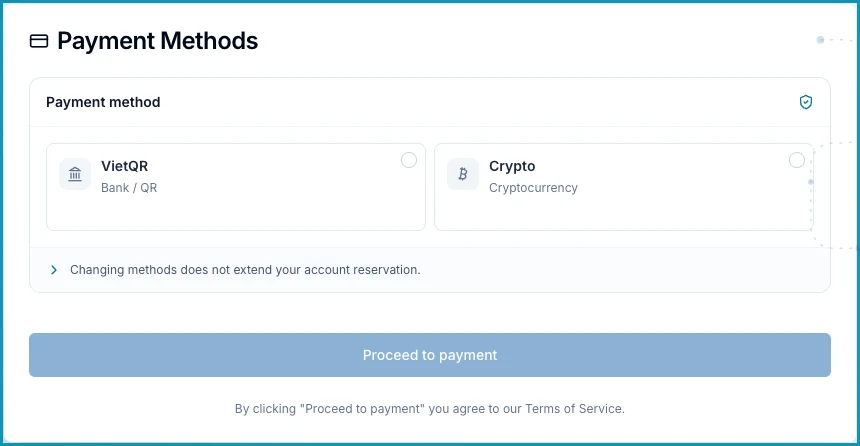
Open full-size screenshot — Pay for the rental Open the order to get your login details
Once your order is confirmed and the account has been issued, open Order Details and find Account Information. If you closed checkout, select Track Order from the menu and enter your saved code. Copy the username and password into the rented software. Use the download button if offered and check when your rental ends.
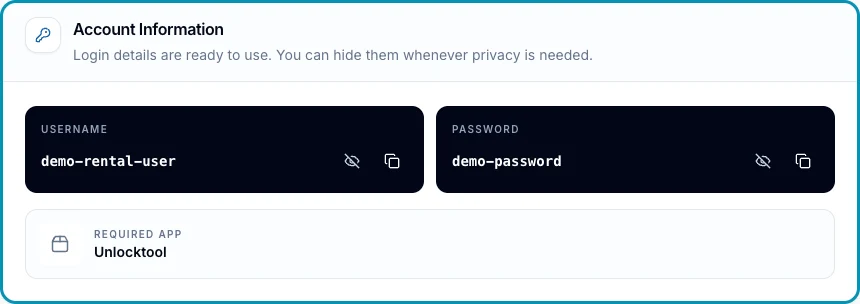
Open full-size screenshot — Open the order to get your login details
Frequently asked questions
Do I need to register to rent a tool?
You can rent as a guest. Enable email notifications and keep your order code so you can find the order again.
I closed checkout. How do I reopen my order?
Select Track Order from the menu and enter your saved order code. You can also use the email link if you requested notifications, or open My Orders if you ordered while signed in.
I paid. Why are my login details missing?
Reopen the order and check its status. If payment is pending or under review, wait for its status before paying again. Contact support with your order code and transaction reference so they can check it.
What if the payment window expired?
If you haven’t sent payment, return to the product page to create a new order. If you already sent payment, contact support with the original order code and transaction reference before placing another order.
What if the order email didn't arrive?
Check your spam folder and the email address you entered. You can still open Order Details using your order code or link.
Where do I see the expiry time or extend a rental?
Check the end time in Order Details. If the rental is active and shows a Renew button, you can use it to add time to the current account.
What if the tool is out of stock?
Check availability on the product page. Choose another suitable tool or check again when accounts become available.
What if the rented login fails?
Check the expiry time, the software you opened, and the credentials in Order Details. If it still fails, send support the order code and error message. Keep the password private.